Reversing a Deposit
Reversing a Deposit
Purpose: This document will teach the DockMaster user how to reverse a deposit that was entered on a Contract or a Work Order.
BEST PRACTICE: REFUND A DEPOSIT OR PAYMENT AND APPLY A NEW PAYMENT.
WARNING: IT IS NOT POSSIBLE TO "TRANSFER A DEPOSIT" BETWEEN BOAT SALES CONTRACTS OR WORK ORDERS.
Reversing the cash receipt entry for the deposit is generally the easier option if the deposit was made using cash or check. If the deposit was made using a credit card, use option 2 or 3 if the credit card is not present to re-enter.
OPTION 1: Reverse the cash receipt
To reverse a cash receipt, go to Accounts Receivable>Cash Receipts>Cash Receipts Entry. Start a new batch for the customer. In the Reference Number field, press F6 to view a list of previously posted cash receipts. Select the batch to reverse. Once selected, a prompt will display the message 'This receipt was posted in batch ####. Would you like to reverse this receipt?' Select Yes. Verify the information is correct and click Post.
Example: The deposit on a Work Order was received under the Customer name by default, but the Bill To customer is now ready to be charged. Reverse the deposit following the instructions above, which will refund the charge. Return to the Work Order and charge the Operations to the Bill To customer instead.
OPTION 2: Forfeit the deposit, create a pay type for forfeit deposits, change the work order customer and then enter a new deposit using the forfeit deposit pay type
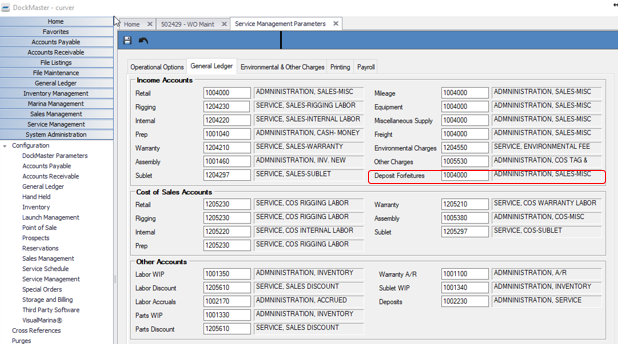
Go to Service Management>Maintenance Functions>Work Orders and enter the Work Order. At the bottom of screen, click Refunds/Forfeits. Enter the entire deposit amount in the 'Amount to Forfeit' field. Click the Update icon and click the Save icon on the work order. Change the customer number on the work order to the new customer. Save. Next you will need to create a Pay Type code that is pointed to the Forfeit GL Account so you can enter the deposit back on to the work order. To find out what your Forfeit GL Account is go to System Administration>Configuration>Service Management, click on the General Ledger tab and the Deposit Forfeiture account number is the last item in the top section on the right side of the screen.
In the example below the Forfeit GL Account number is 1004000. You will need to create the Pay Type code that points to whatever GL account you use for Deposit Forfeitures. Go to File Maintenance>Pay Type codes and create the Pay Type code – see screen shot below:
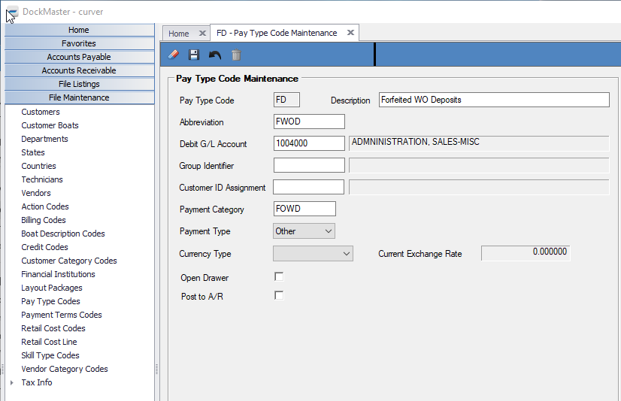
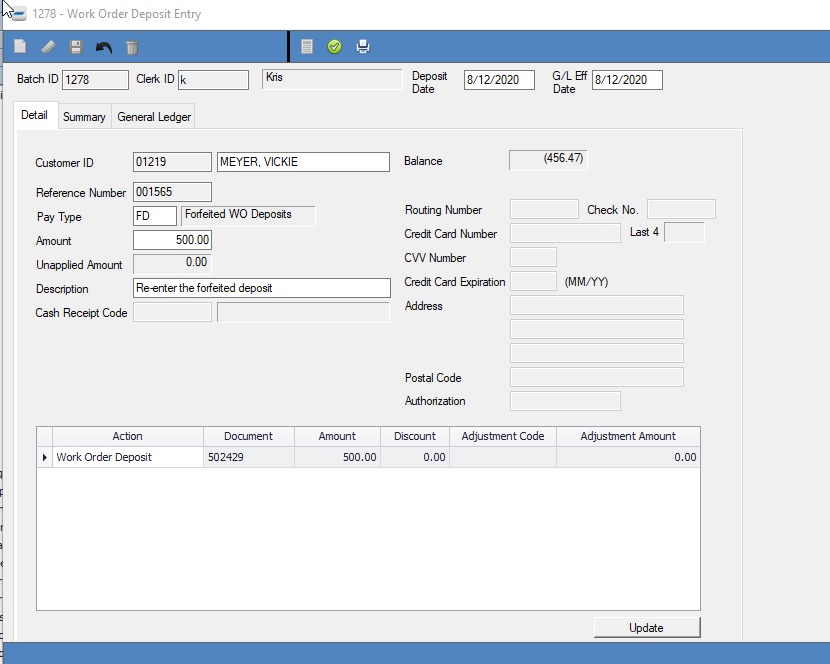
Now go back to the Work Order and create a new deposit. This time you will create the deposit using this new Pay Type Code. This process does not affect your bank account and will cancel out the amount posted to the forfeit account in the first process and will post the correct amount to the work order as a deposit.
OPTION 3: Refund the deposit to the customer's AR account and manually apply the credit when you invoice the other work order.
To refund a work order deposit, go to Service Management>Maintenance Functions>Work Orders and enter the Work Order. At the bottom of screen, click Refunds/Forfeits. Enter the entire deposit amount in the Refund field. Click the Update icon and then click the Save icon on the work order. When the Refund Choices window opens, choose 'Other' and 'On Account' and click the Save icon.
**If at any point you run into any issues, feel free to email [email protected] for assistance.**